How to enable Active Directory Auditing
Auditing (tracking & reviewing) changes in your environment is important for internal accountability, remaining compliant with regulation and a variety of other reasons. The only real downside to auditing is the added load on the system which suddenly needs to perform more reads & writes, as well as the extra disk space that’s being used. Let’s dive into Active Directory Auditing!
In the modern medium-to-large enterprise, almost no other system changes as often, while constituting such an important IT backbone, as Active Directory, and because of the reason stated in the previous paragraph, deciding what to audit is equally important as auditing.
There are quite a few auditing categories that Active Directory natively supports and offers but in order to keep this as simple as possible we’ll only talk about the options found in Local Policy.
Defining Auditing in Local Policy#
In order to define these you need to open up the run prompt and type gpmc.msc (or just open “Group Policy Management”, if you’re using the GUI).
Depending on your wants and needs, you can either create a new GPO or edit an existing one. Right click on the relevant GPO and choose “Edit…”.
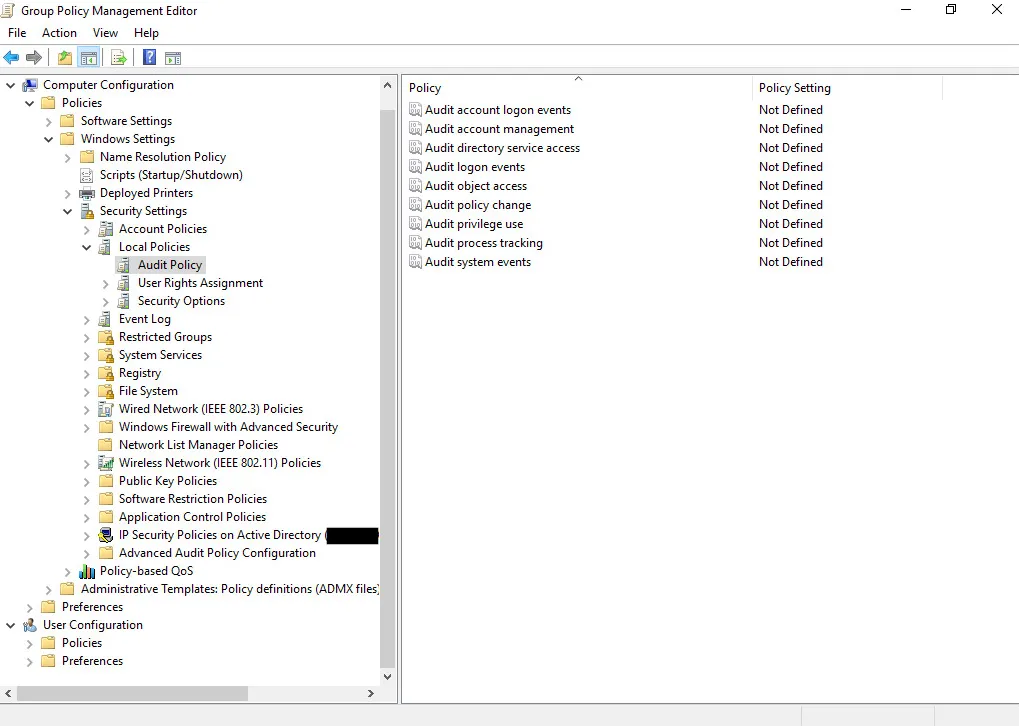
In the editing window, expand your way down Computer Configuration > Windows Settings > Security Settings > Local Policies > Audit Policy
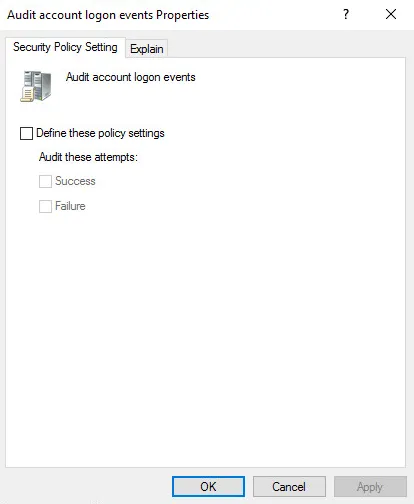
Once you double click one of the policies, you’re presented with 2 types of auditing - Success and Failure. You can also click the Explain tab to get a sense of what exactly it is you’re configuring as well as information on the default values on different Windows operating systems.
I know I said we’ll focus in Local Policy, but since you read this far, you must be interested in knowing more. The options listed under Local Policy are fairly limited. If you want to use the big guns, navigate (in the GPO editor) to Computer Configuration > Windows Settings > Advanced Audit Policy Configuration > Audit Policies where you’ll find more granular and in-depth auditing options.
Bonus fact: Microsoft also tries to help you estimate the increase in events in the Explain tab of each option!
I hope you found this post useful, and will implement Active Directory Auditing in your organization.
- Category:
