Changing Input Source Shortcuts in Ubuntu

These days I’m in the process of transitioning from Windows 10 to Ubuntu (Specifically the Zorin OS distro). I’m not going to lie and say it’s been smooth sailing so far, but I do love how customizable Linux is, and after reading Jason Cannon’s Linux for Beginners I’ve been feeling much more competent and the Linux shell wasn’t such a stranger to me (even though by the time I got to that point I have already spent an entire day just making Zorin an at least slightly comfortable OS for me).
One of the parts I found to be particularly challenging was changing some of the keyboard shortcuts. A lot of the shortcuts I got used to were simply non-assignable from Zorin’s Settings application. There was one specific keyboard shortcut that I desperately wanted to assign, and that was Shift+Alt for quick changes between keyboard layouts. A quick Google search led me to find gnome-tweaks (or gnome-tweak-tool if you’re on newer versions of Ubuntu). Jackpot. I fired up my terminal and typed:
sudo apt install gnome-tweak-tool
Awesome! The program was installed successfully, I launched it and went on to configure the desired change.
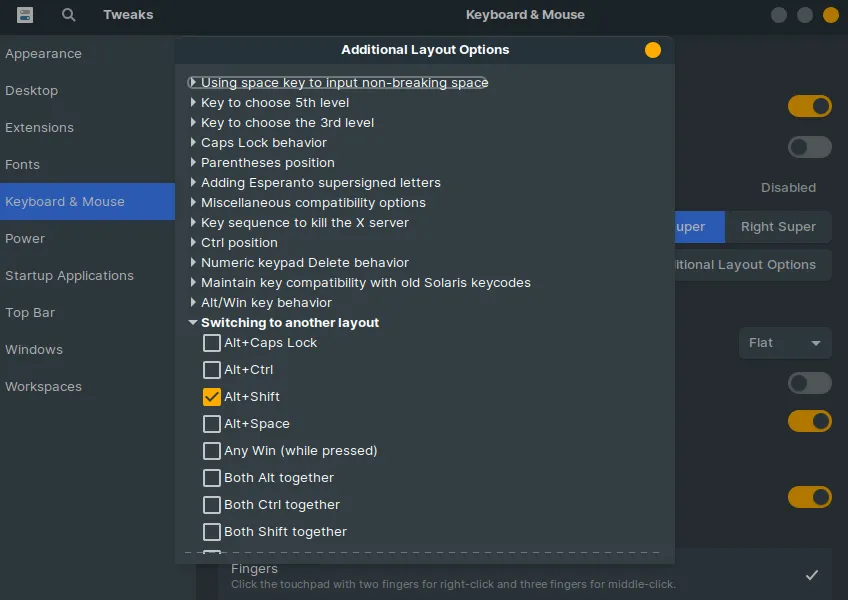
This was the end of it, or so I thought. A few minutes after performing this change, I started to notice some strange behavior. On some apps, when I’d switch the layout, the current window will no longer be focused, meaning that if I wanted to type some text, for example, I’d have to click the textbox/window again. I then found out that it was Alt in particular that caused this issue. When I press Shift+Alt, I actually press Alt first, followed by Shift. Bummer.
I started searching for another solution, because clicking Alt again after every layout change is punishing myself, and working in IT, I couldn’t just let that bug annoy me for all eternity. I found some documentation and forum threads on the gsettings utility. Seemed like a safe bet. Looking at the examples online (which were very specific, relating mostly to custom keyboard shortcuts rather than existing ones) I got the general idea for the syntax and usage of the utility and started looking at the different schemas. Being interested in keybindings, I grepped the word “key”
$ > gsettings list-schemas | grep key
org.gnome.settings-daemon.peripherals.keyboard
apps.indicators.keylock
org.gnome.mutter.keybindings
org.gnome.libgnomekbd.keyboard
org.gnome.settings-daemon.plugins.media-keys
org.gnome.desktop.a11y.keyboard
org.gnome.mutter.wayland.keybindings
org.gnome.desktop.wm.keybindings
org.gnome.shell.keyboard
org.gnome.settings-daemon.plugins.a11y-keyboard
org.gnome.desktop.peripherals.keyboard
org.gnome.shell.keybindings
org.gnome.settings-daemon.plugins.keyboard
org.freedesktop.ibus.general.hotkey
$ >
org.gnome.desktop.wm.keybindings in particular caught my attention. I decided to look at the keys in this schema.
$ > gsettings list-keys org.gnome.desktop.wm.keybindings | grep input
switch-input-source
switch-input-source-backward
$ >
Bingo! I wanted to make sure this key was indeed the one I needed to change
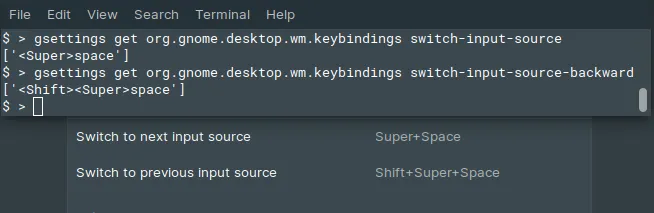
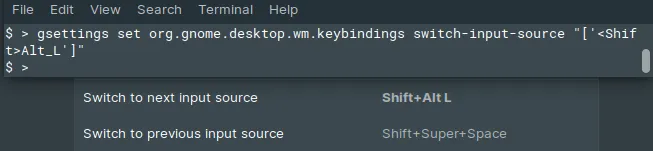
Now all that’s left to do is change the shortcuts. It took me a bit of time to find the exact syntax that works (And it’s case sensitive).
You can also change the opposite keyboard shortcut if you want.
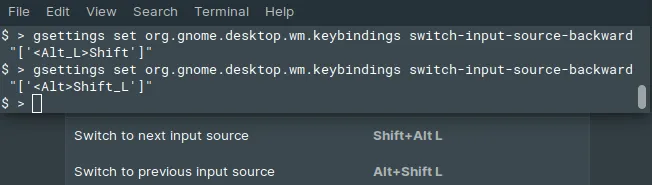
That’s it, layout switching works flawlessly now.
Copy the below commands or change them as you wish.
gsettings set org.gnome.desktop.wm.keybindings switch-input-source "['<Alt>Shift_L']"

gsettings set org.gnome.desktop.wm.keybindings switch-input-source-backward "['<Shift>Alt_L']"
